Worksheet 3
Workspace Setup
Ensure your MATLAB path is set to
<INSTALLDIR>/i2sc_worksheets/Worksheet3
where <INSTALLDIR> is the directory where you extracted the course content (see the Getting Started page)
1. Piecewise Linear Interpolation
In this exercise you will read in a lift curve and store it in an array. You will then perform linear interpolation to find the lift at any chosen angle, and the angle needed for a chosen lift. The lift data is shown below and is contained in the file data/liftcoeff.txt.
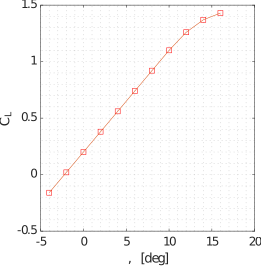
Complete the following tasks in the supplied file problem_1.m
- Write a function with the signature
[alphas,Cls] = readData()to extract data from the data file. You may find the code snippetC = textscan(fid,'%f %f','HeaderLines',1);useful. - Write a function with the signature
[Cls] = interpCl(alpha)to perform piecewise linear interpolation to find the interpolated lift coefficient for the user-specified anglealpha - Ensure the function you generated in step two works for an array input e.g.
alphas = 0:0.1:1; - Extend your script to create a plot showing both the data points, and the `curve’ produced from the linear interpolation (you will need to perform linear interpolation for a large number of angles and plot the resulting response).
2. File Input
When an aerofoil is placed in flow (as shown in Figure), pressure forces, that act normal to the surface, can be measured at any given point.
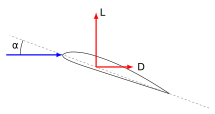
The Task
There are three files in the data folder which contain pressure values around a NACA23015 aerofoil (calculated using the XFOIL program) at \(0^{\circ}\), \(5^{\circ}\) and \(10^{\circ}\) angles of attack
- \(0^{\circ}\) this is stored in the file
naca23015_00degs.txt - \(5^{\circ}\) this is stored in the file
naca23015_05degs.txt - \(10^{\circ}\) this is stored in the file
naca23015_10degs.txt
Complete the following tasks in the supplied file problem_2.m
- Create a function with the signature
[x,cp] = readCpData(filename);which reads the data from the data file. - produce a single graph of \(-C_P\) against \(x/c\) with all three angles of attack plotted (use different line styles and a legend to distinguish the data sets).
3. Potential Flow
At a location, denoted by \((x,y)\), an example potential flow has a velocity vector \((u,v)\) which is given by:
\[\begin{aligned} u &= 1 + \frac{x}{2\pi(x^2+y^2)} \\ v &= \frac{y}{2\pi(x^2+y^2)} \end{aligned}\]Complete the following tasks in the supplied file problem_3.m
- Write a MATLAB function with the signature
[u,v] = flowVelocity(x,y)which returns the flow velocity at the point \((x,y)\) - Edit the function to ensure it accepts an array as an input e.g.
x = -1:0.1:1; y = -1:0.1:1; [u,v] = flowVelocity(x,y); - Create a single plot in the range \(x \in \{-1,1\}\), \(y \in \{-1,1\}\) containing both:
- Save the figure in the
.figformat so we can edit it later. Save the file atbin\potFlow.fig. Hint: use thesavefigmethod.
4. Streamlines in Potential Flow
A streamline through a flow field can be calculated using numerical integration. The method used here is a first order Euler method. Given a current location at the current time level \((x_{old},y_{old})\), the next location \((x_{new},y_{new})\) is given by:
\[\begin{aligned} x_{new} &= x_{old} + u_{old}\Delta t \\ y_{new} &= y_{old} + v_{old}\Delta t \end{aligned}\]where \(u_{old}\) and \(v_{old}\) are the velocity components at the current location. A basic schematic is shown in Figure.
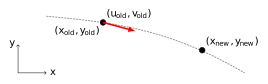
The Task:
Complete the following tasks in the supplied file problem_4.m
- Write a MATLAB function with the signature
[u] = flowVelocity(p)which returns the flow velocity \(\mathbf{u}\) (a 2xN vector, where row one is the \(u\) and row 2 is the \(v\) component), at the points \(\mathbf{p}\) (a 2xN vector, where row one is the \(x\) coordinate and row 2 is the \(y\) coordinate). Use the same equation as that in section 3. Write a MATLAB function with the signature
[p,t] = getStreamline(p0,dt)which returns the path of a streamline starting the pointp0(a 2x1 vector). Use the Euler method described above, where the argumentdtis the timestep to use.Use your function
flowVelocity(p)inside this function to calculate the velocity at a given point- Starting at the point (-1,0.5), plot the streamlines for each of the following timesteps
dts = [2,1,0.5,0.1,0.01]. Comment on the difference, and choose a suitable timestep to use moving forwards. Plot the streamline starting at (-1,0).
This point will likely cause an error in your code, or ‘hang’ indefinitely. As a first fix try adding a maximum number of timesteps to you function
getStreamline. What is the physical significance of where this streamline ‘ends’? Can you think of a better stopping criteria?- Load the figure you created in section 3 (e.g. the
.figfile you saved - Hinthelp openfig). Plot the streamlines starting atx = -1,y = -1:0.25:1onto this figure.
In general, it is recommended that you avoid the use of the streamline function in MATLAB